Most designers don’t lack inspiration. They lack a way back to it. A good reference is only useful if you can find it again, remember why you saved it, and use it to decide something.
Why inspiration fragments
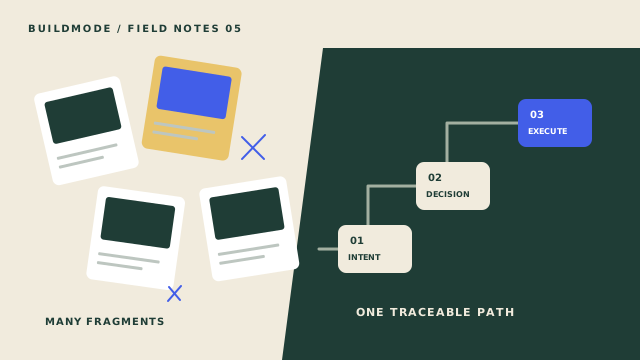
References arrive from everywhere: a link from a client, a screenshot on a train, a photo of a shop sign. Each tool captures it a little differently, and none of them knows which project you were thinking about.
Weeks later you remember seeing the right typeface, but not where. The cost isn’t the lost image. It’s the lost context, the reason it mattered.
Organize by project and purpose
Start with the project, because that’s how you’ll be asked about the work. Inside it, group each reference by the job it does: mood, type, color or layout. In this example, purpose filters help you compare references. Use a small set of labels in whichever tool you work with.
Keep the taxonomy small. Four or five purposes cover most branding work, and a short list is one you’ll actually use.
6 matching references · All
Capture the why
A saved image says what you liked. A short note says what you were solving. Write one sentence on what caught your eye, one on why it fits the brief, and one on where it might be used.
Three short lines are enough. They turn a pile of pictures into an argument you can show a client.
Matte ceramic cups
What caught my eye
Calm, tactile, unbranded.
Why it fits the brief
Sets the physical tone for the first-time customer.
Where it could be used
Photography brief and packaging texture.
From inspiration to directions
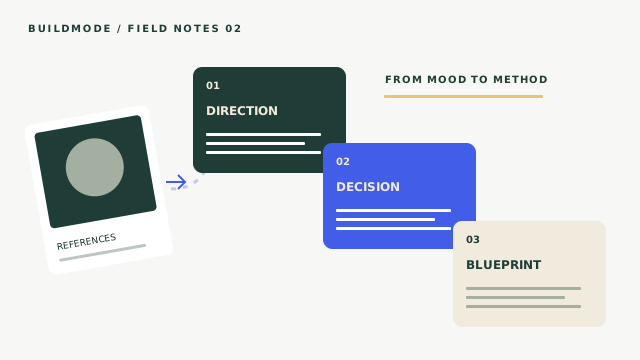
Once references have reasons, patterns appear. Three references that share texture, tone and color are a creative direction waiting for a name.
Write the direction as a short statement of feeling and constraint. It should be specific enough that two people could disagree with it.
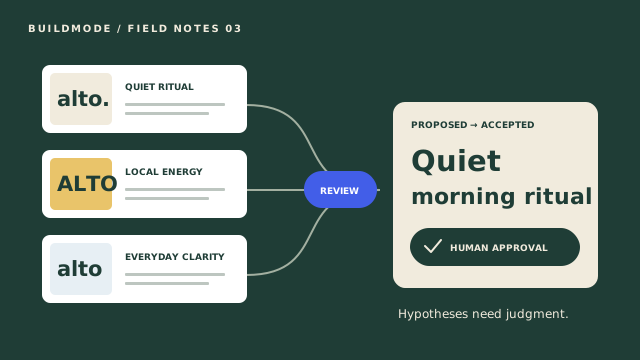
Direction
Quiet morning ritual
Soft ceramic textures, a single deep green, and warm daylight. Typography stays small and confident.
From directions to decisions
A direction is still a mood. A decision is a commitment: the wordmark is set in a rounded sans, the packaging uses one color. Decisions are what let you move forward and what you can point to when feedback arrives.
Make them one at a time, and keep each next to the direction it came from.
Direction
Quiet morning ritual
Suggested decisions
Decisions
0 acceptedNo accepted decisions in this demo. Pick a suggestion or record a separate decision linked to the direction.
How BuildMode supports this workflow
BuildMode Studio connects project references, Directions and Decisions in a visual workspace. AI exploration can suggest Directions; you review them and record separate Decisions linked to their source Directions. A Direction does not turn into or disappear into a Decision. Creative Blueprint structures that context into a plan, and Bring to Life turns an execution goal and the current Blueprint into an execution plan with deliverables, steps and unresolved questions. These later stages are in refinement during private beta.
Canvas
Explore references and connect a Direction to its source references. Record separate Decisions linked to that Direction.
Linked Decision: Use warm daylight for launch photography.
Illustrative local examples, not a live product session. Nothing is generated or saved. Save references to your private Library and add them to projects when useful.
Carry the reasoning into your next tool
Organizing inspiration is only the start. When you make a concrete decision from a direction, keep its references and rationale close as you move into design, planning or a client handoff.
For ALTO, that means carrying the warm-daylight decision into the photography brief, alongside the references that explain it. BuildMode’s planned integrations aim to bring that context closer to the tools you already use. These connections are not available yet.
'%3e%3cpath%20d='M13.3333%2080.0002C20.6933%2080.0002%2026.6667%2074.0268%2026.6667%2066.6668V53.3335H13.3333C5.97333%2053.3335%200%2059.3068%200%2066.6668C0%2074.0268%205.97333%2080.0002%2013.3333%2080.0002Z'%20fill='%230ACF83'/%3e%3cpath%20d='M0%2039.9998C0%2032.6398%205.97333%2026.6665%2013.3333%2026.6665H26.6667V53.3332H13.3333C5.97333%2053.3332%200%2047.3598%200%2039.9998Z'%20fill='%23A259FF'/%3e%3cpath%20d='M0%2013.3333C0%205.97333%205.97333%200%2013.3333%200H26.6667V26.6667H13.3333C5.97333%2026.6667%200%2020.6933%200%2013.3333Z'%20fill='%23F24E1E'/%3e%3cpath%20d='M26.6667%200H40.0001C47.3601%200%2053.3334%205.97333%2053.3334%2013.3333C53.3334%2020.6933%2047.3601%2026.6667%2040.0001%2026.6667H26.6667V0Z'%20fill='%23FF7262'/%3e%3cpath%20d='M53.3334%2039.9998C53.3334%2047.3598%2047.3601%2053.3332%2040.0001%2053.3332C32.6401%2053.3332%2026.6667%2047.3598%2026.6667%2039.9998C26.6667%2032.6398%2032.6401%2026.6665%2040.0001%2026.6665C47.3601%2026.6665%2053.3334%2032.6398%2053.3334%2039.9998Z'%20fill='%231ABCFE'/%3e%3c/g%3e%3cdefs%3e%3cclipPath%20id='clip0_912_3'%3e%3crect%20width='53.3333'%20height='80'%20fill='white'/%3e%3c/clipPath%3e%3c/defs%3e%3c/svg%3e)
'%3e%3cpath%20d='M40%2080C62.0914%2080%2080%2062.0914%2080%2040C80%2017.9086%2062.0914%200%2040%200C17.9086%200%200%2017.9086%200%2040C0%2062.0914%2017.9086%2080%2040%2080Z'%20fill='%237D2AE7'/%3e%3cpath%20d='M40%2080C62.0914%2080%2080%2062.0914%2080%2040C80%2017.9086%2062.0914%200%2040%200C17.9086%200%200%2017.9086%200%2040C0%2062.0914%2017.9086%2080%2040%2080Z'%20fill='url(%23paint0_radial_905_1790)'/%3e%3cpath%20d='M40%2080C62.0914%2080%2080%2062.0914%2080%2040C80%2017.9086%2062.0914%200%2040%200C17.9086%200%200%2017.9086%200%2040C0%2062.0914%2017.9086%2080%2040%2080Z'%20fill='url(%23paint1_radial_905_1790)'/%3e%3cpath%20d='M40%2080C62.0914%2080%2080%2062.0914%2080%2040C80%2017.9086%2062.0914%200%2040%200C17.9086%200%200%2017.9086%200%2040C0%2062.0914%2017.9086%2080%2040%2080Z'%20fill='url(%23paint2_radial_905_1790)'/%3e%3cpath%20d='M40%2080C62.0914%2080%2080%2062.0914%2080%2040C80%2017.9086%2062.0914%200%2040%200C17.9086%200%200%2017.9086%200%2040C0%2062.0914%2017.9086%2080%2040%2080Z'%20fill='url(%23paint3_radial_905_1790)'/%3e%3cpath%20d='M57.2691%2048.2052C56.939%2048.2052%2056.6485%2048.484%2056.3462%2049.0928C52.9323%2056.0153%2047.0358%2060.9134%2040.2125%2060.9134C32.3228%2060.9134%2027.437%2053.7913%2027.437%2043.9522C27.437%2027.2855%2036.7232%2017.6491%2044.8796%2017.6491C48.691%2017.6491%2051.0186%2020.0443%2051.0186%2023.8559C51.0186%2028.3796%2048.4485%2030.7748%2048.4485%2032.3702C48.4485%2033.0864%2048.8939%2033.5201%2049.7773%2033.5201C53.3264%2033.5201%2057.4918%2029.4419%2057.4918%2023.6808C57.4918%2018.0947%2052.63%2013.9888%2044.4737%2013.9888C30.994%2013.9888%2019.0142%2026.4858%2019.0142%2043.777C19.0142%2057.1614%2026.6572%2066.0061%2038.45%2066.0061C50.9668%2066.0061%2058.2043%2053.5526%2058.2043%2049.5105C58.2043%2048.6153%2057.7466%2048.2052%2057.2691%2048.2052Z'%20fill='white'/%3e%3c/g%3e%3cdefs%3e%3cradialGradient%20id='paint0_radial_905_1790'%20cx='0'%20cy='0'%20r='1'%20gradientUnits='userSpaceOnUse'%20gradientTransform='translate(15.453%2070.9057)%20rotate(-49.416)%20scale(61.8733)'%3e%3cstop%20stop-color='%236420FF'/%3e%3cstop%20offset='1'%20stop-color='%236420FF'%20stop-opacity='0'/%3e%3c/radialGradient%3e%3cradialGradient%20id='paint1_radial_905_1790'%20cx='0'%20cy='0'%20r='1'%20gradientUnits='userSpaceOnUse'%20gradientTransform='translate(21.1788%209.09457)%20rotate(54.703)%20scale(69.7735)'%3e%3cstop%20stop-color='%2300C4CC'/%3e%3cstop%20offset='1'%20stop-color='%2300C4CC'%20stop-opacity='0'/%3e%3c/radialGradient%3e%3cradialGradient%20id='paint2_radial_905_1790'%20cx='0'%20cy='0'%20r='1'%20gradientUnits='userSpaceOnUse'%20gradientTransform='translate(15.4526%2070.9053)%20rotate(-45.1954)%20scale(61.1242%2028.1118)'%3e%3cstop%20stop-color='%236420FF'/%3e%3cstop%20offset='1'%20stop-color='%236420FF'%20stop-opacity='0'/%3e%3c/radialGradient%3e%3cradialGradient%20id='paint3_radial_905_1790'%20cx='0'%20cy='0'%20r='1'%20gradientUnits='userSpaceOnUse'%20gradientTransform='translate(32.7158%2010.7789)%20rotate(66.5198)%20scale(62.9836%20105.512)'%3e%3cstop%20stop-color='%2300C4CC'%20stop-opacity='0.725916'/%3e%3cstop%20offset='0.0001'%20stop-color='%2300C4CC'/%3e%3cstop%20offset='1'%20stop-color='%2300C4CC'%20stop-opacity='0'/%3e%3c/radialGradient%3e%3cclipPath%20id='clip0_905_1790'%3e%3crect%20width='80'%20height='80'%20fill='white'/%3e%3c/clipPath%3e%3c/defs%3e%3c/svg%3e)

'/%3e%3cpath%20fill-rule='evenodd'%20clip-rule='evenodd'%20d='M32.4953%2017.1804C32.2202%2016.9368%2031.8067%2016.9367%2031.5314%2017.1801L15.663%2031.2116C15.0564%2031.748%2014.1285%2031.6857%2013.599%2031.0731L7.40986%2023.9122C6.88774%2023.3082%206.95019%2022.3961%207.54979%2021.8688L31.0527%201.20062C31.6021%200.717503%2032.4248%200.717611%2032.9741%201.20088L56.4822%2021.8847C57.0822%2022.4125%2057.1439%2023.3256%2056.6205%2023.9294L50.4164%2031.0866C49.8862%2031.6982%2048.9589%2031.7594%2048.353%2031.2229L32.4953%2017.1804Z'%20fill='url(%23paint1_linear_8_569)'/%3e%3cdefs%3e%3clinearGradient%20id='paint0_linear_8_569'%20x1='5.3335'%20y1='32.1624'%20x2='58.6653'%20y2='32.1624'%20gradientUnits='userSpaceOnUse'%3e%3cstop%20offset='0.225962'%20stop-color='%236647F0'/%3e%3cstop%20offset='0.793269'%20stop-color='%230091FF'/%3e%3c/linearGradient%3e%3clinearGradient%20id='paint1_linear_8_569'%20x1='5.3335'%20y1='31.6447'%20x2='58.6653'%20y2='31.6447'%20gradientUnits='userSpaceOnUse'%3e%3cstop%20stop-color='%23FF02F0'/%3e%3cstop%20offset='0.778846'%20stop-color='%23F76808'/%3e%3c/linearGradient%3e%3c/defs%3e%3c/svg%3e)

 BuildMode
Bring to Life Planned integrations
Multi-tool integration
Your creative thinking, closer to your favorite tools. Connections to Figma, Canva, Linear, ClickUp and Gmail are planned.
Next: From Moodboard to Creative Project Plan shows how to carry the ALTO references into a brief, a Blueprint and an execution plan.